Everyone! We've moved to WordPress.

Investigations in "Illegal Activities" with User Defined Functions

0
A group of fellow Excel experts who call themselves the Frankens Team were encouraged by the rollover method to investigate other known instances in which Excel has allowed for the impossible; namely, allowing UDFs to change the value of other cells.

I invite everyone to view their terrific analysis: Excel formula to change the value of another cell?

Also, take a look around the site (which is mostly in Italian - so get that Google translator ready!) for some great Excel stuff, like Creative and advanced chart design in Excel.

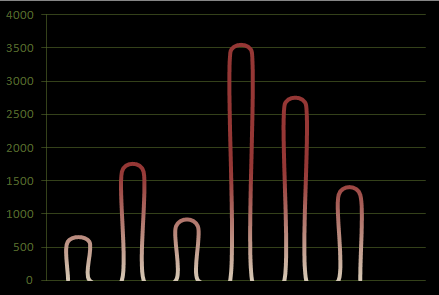
By the way, what would you call this type of chart?

Courtesy E90E50 fx
:)

The Excel Rollover Mini FAQ

26
As more people are use the rollover method (or “Interactive Hyperlinks” as Chandoo calls them), I thought it might be helpful to answer common questions I've seen popping up on forums. So, in no particular order, I present the Excel Rollover Mini FAQ!

1. Are there example articles and spreadsheets on how to use Excel rollovers?


Here’s a list: 
Articles and Tutorials
How to Create a Rollover Effect in Excel: Execute a Macro When Your Mouse is over a Cell by Me
How to: highlighting cells using the rollover technique in Excel by Me
Interactive Dashboard in Excel using Hyperlinks by Chandoo
Needs More Rollover: Quick Tip! by Me
Une macro sensible à la souris by Monsieur Excel (this one is in French!)
Handling Rollover Clicks Without Using the Worksheet_SelectionChange Event by Me
Roll Over Tooltips and Web Actions on a Microsoft Excel Dashboard by Robert Mundigl of ClearlyAndSimply.com
Guest Post: Rollover for Months and Years by Bert van Zandbergen (klvzndbrgn (at) gmail )
Dynamic Funnel Chart by Bert van Zandbergen
If you know of others or would like me to add an informative article you've written, go ahead and email me a link. 

2. Do rollovers work in Excel 2003 and in versions previous?

No, I don't think so. I haven't tested this for myself, but comments on other blogs suggest that the method only works for versions 2007 and 2010. Excel 2013 is not yet out, so while I think it will work in that version, we will have to wait and see for ourselves.

[updated 9/21/2012]

Maybe. I might have been wrong about what I said earlier. You see, I've always used IFERROR to surround the HYPERLINK formula, but I forgot IFERROR didn't exist for Excel until version 2007. This formula by Zoran Stanojević might conceivably work in Excel 2003:

=REPT("",ISERROR(HYPERLINK(getCoordinates(....),"")))


Additionally, Zoran writes:

I always avoid version specific functions when they are unnecessary because they potentially weakening the universal solution.

That's an incredibly good point. Still, I'm probably not going to give up IFERROR anytime soon :).

But, if you are you are employing the rollover method on your own spreadsheet--and you're concerned with backward compatibility issues--definitely consider using his formula above. Then come back and share the results with your good buddy, Jordan.

Also, I had an email conversation with someone recently who attempted to run my introduction to the rollover method file, "Snakey", in Excel 2013 preview. He said the file eventually crashed Excel 2013. However, it was the preview version, so whether the rollover method works in the final version still remains to be seen.  For this blog's sake, I hope the rollover method works correctly in Excel 2013.

3. Why/how do rollovers work? I thought User Defined Functions could not change other values on a spreadsheet. I've also heard this functionality doesn't exist in Excel.

As far as I can tell the rollover method shouldn't exist. I think it works by taking advantage the Hyperlink formula in a way unforeseen by the original developers. Intentional or not, the functionality I believe has opened a door to some cool new possibilities with Excel. 

I can only speculate why rollovers work the way they do. My best guess is that when your mouse floats over a hyperlink, Excel goes out behind the scenes to check if the hyperlink exists and loads the address in memory in anticipation of a click. This piece of memory probably goes into a generic callback procedure which knows how to handle the different actions that fill the callback queue. Because a User Defined Function is supplied instead of a URL or reference on the spreadsheet (as is normally the case when use Hyperlink) the callback function treats the UDF like any other and executes it immediately without knowing that it came from the Hyperlink formula. 

I could be wrong about all of this, but that's my (rather uneducated) guess. If any of you know better, I welcome your feedback. If I'm wrong, let me know. My feelings won't be hurt. 

4. Is there a way to handle multiple rollovers on the same sheet?

Yes. Simply create another rollover function in your module and point it to the new rollover function in your module. As far as I can tell, there is no limit to how many rollovers your spreadsheet can employ at any given time.  

5. When my mouse is over the hyperlink, Excel continuously fires the macro which is slowing everything down. Is there anything I can do about this? 

Yep, try this.

6. I want the entire cell to become a rollover hotspot, but the user defined function only fires when my mouse is on the text of the hyperlink - how can I make the entire cell a hotspot?

Enable wordwrap in each cell containing the rollover method.

7. My rollovers used to work perfectly, but now they don't work at all! Recently I added some formulas like INDEX, VLOOKUP, and SUM to the hyperlink rollover formula. Now everything appears without error, but the macro no longer fires. What happened? I need to make my formulas dynamic!

Rollovers appear like regular formulas but they are not. When you add other formulas to them, they tend to not work as planned (they may work if you select the cell and hit Enter - but that's not what you want). However, you can make your rollover functions dynamic, but you cannot do it by adding formulas directly to the rollover formula. 

Here's what's I've found. Apparently, rollover formulas work exactly like references used for dynamic charts, dynamic labels, and form controls. Let's take the chart example. When you want to make a dynamic chart, you must have your chart series refer to a range containing the dynamic data. You can't place an INDEX function directly into your chart's SERIES function, but you can have your chart point to a set of data that uses the INDEX function. You'll have to create the same mechanism when using rollovers. So, if you want to make your hyperlink formula change its "friendly text" based something the user does, place a reference to the range with your dynamic content in the friendly text parameter of the HYPERLINK formula and the return error parameter of your IFERROR formula. 

It's really no different than what you would do when working with a dynamic chart. But unlike in charts and form controls - Excel won't give you a warning when you've placed stuff into the rollover formula that shouldn't be there - instead, your rollovers just won't work. 


8. How do I handle clicks on my Rollover cells?

You can use the Worksheet_SelectionChange event, but I prefer this method.

9. Do rollovers work on non-Windows machines, like Macs?

I don't think so. Rollovers require Visual Basic for Applications and the latest versions of Office for Macs don't include the ability to create or run macros, from what I'm told. 

If you're a mac user and have success using the rollover method, I'd certainly love to hear from you about it.

Can I add to this list?

Sure! Email me or post thoughts, examples, advice, etc. 
Needs More Rollover: Quick Tip!

2
More people are interested in Excel mouse rollovers, which I think is great. I'm especially enthusiastic about Chandoo's latest dashboard contest where I found out that several contestants used the technique! By the way, there are many great dashboards showcased in the contest. Take a look and make sure to vote!

So here's the tip. If you're familiar with the rollover method - and you should be by now, it's like all I ever blog about these days - you may have noticed that while your mouse is over a cell, Excel is continuously firing the rollover method. For example, let's take a look at this snippet from Chandoo's blog:

Public Function highlightSeries(seriesName As Range)
Range("valSelOption") = seriesName.Value
End Function


If you place your mouse over the cell with the HYPERLINK formula that calls this function, the range valSelOption will be continuously written to. This becomes a problem when there's a lot of complex interaction on your spreadsheet. If, for example, you've used a lot of volatile functions (like OFFSET or VLOOKUP), continuously writing to the sheet will mean a recalculation for each cell with the volatile function. Nobody likes a slow spreadsheet. 

The incredibly simple fix to our problem comes from the wonderful book, Professional Excel Development, by  Bullen, Bovey, and Green in their chapter on spreadsheet optimization and speed tricks. Simply test if you're rewriting the same value over and over again:

Public Function highlightSeries(seriesName As Range)
If Range("valSelOption") <> seriesName.Value Then Range("valSelOption") = seriesName.Value
End Function


In the above code, I test if valSelOption already equals seriesName.Value. If it does, then we do nothing; if not, we write to it so that the next time the function is called with the same value in its argument (which is unpreventable if your mouse is over a cell for even a brief moment second), we can again, relax and do nothing.

Thats it! You'll likely see an immediate speed improvement, especially if you're doing lots of complex stuff with your rollover, like a this.

Turn Off Cell Background Error Checking with VBA

3
When I'm all done with my Excel application, I'll usually want to flip off background error checking - that is, I'll tell Excel to stop showing those little green triangles that appear in cells. Don't get me wrong, those little green alerts can be useful - but they are rarely so in a finished product where I know my layout and formulas are correct. I just want to tell Excel, "thanks for the help, but stop annoying me already!" Indeed, these green alerts appeared on other computer screens when users opened my Periodic Table of elements file, which I found annoying.

The problem is that while I can tell those green triangles to go away on my instance Excel by going into Excel Options (or simply by clicking "ignore"), that won't fix the problem when my file is loaded onto other computers. The way around this is some VBA and the workbook open and close events. 

So, in my ThisWorkbook object in the VBA window, I wrote this:

Option Explicit

Private Sub Workbook_Open()
    Application.ErrorCheckingOptions.BackgroundChecking = False
End Sub

Private Sub Workbook_BeforeClose(Cancel As Boolean)
    Application.ErrorCheckingOptions.BackgroundChecking = True
End Sub

There are actually several types of background error checking that go on in a workbook. Excel allows you to disable these separate error checks by themselves if don't want to disable everything. Specifically, you can modify background checking options for empty cell references, error calculations, inconsistent formulas, and omitted cells, among others. For example, you might simply write:

Application.ErrorCheckingOptions.OmittedCells = False

if you only want Excel to stop monitoring for formula patterns that appear to omit cells that Excel thinks should be included in the formula. This will work so long as BackgroundChecking is still True. If you set BackgroundChecking to False like in the example above, Excel will cease all attempts to second guess your work (which can make your life easier, sometimes). 

To read more, see:

How to: highlighting cells using the rollover technique in Excel

8
In my last post I used my patented rollover technique to create an effect similar to the one shown below:

Unable to display content. Adobe Flash is required.

Neat, huh? When you place your mouse over a cell, it changes color to show that you are selecting it. It's a true "rollover": no mouse-clicks required. In my last post, I show how that might be useful.

Wondering how I did it? Checkout this file:
Rollover Surprise.xlsm

Spreadsheet Guidelines and Best Practices

0
Today, I found this journal article, The role of OR [Operations Research] specialists in ‘do it yourself’ spreadsheet development, from the European Journal of Operational Research, by John S Edwards, Paul N Finlay, John M Wilson. The article outlines 20 Guidelines for Spreadsheet Development and 21 Best Practices Points, which I excerpt below.

Guidelines for Spreadsheet Development

Fig. 2. Guidelines for spreadsheet development.

Best Practices for Spreadsheet Development

Fig. 3. Best Practices Points. 
My favorite point is #14 from the list of Best Practices: 

Never input the same piece of data more than once.

This rule reminds me of the 17th rule of composition from the Elements of Style: "Omit needless words." Perhaps Best Practice-point #14 can be rewritten as "Omit needless data." 

_____
Figure 2 and Figure 3, from John S Edwards, Paul N Finlay, John M Wilson, The role of OR specialists in ‘do it yourself’ spreadsheet development, European Journal of Operational Research, Volume 127, Issue 1, 16 November 2000, Pages 14-27, ISSN 0377-2217, 10.1016/S0377-2217(99)00331-8.

My Top 5 VBA Development Environment Tips

2
So you've got a project that requires VBA – you’re ready and excited – and you jump right in! But here come the headaches! With every syntax error the visual basic environment interrupts your programming mojo with an annoying popup. You remembered to place comments in your code – but where are the ones you’re looking for? When did Excel programming become so frustrating?

Below, I’ll describe how I've customized my editor to minimize annoyance and maximize efficiency. It might not help you become a better programmer…but then again, it really might! Your best work probably comes from a space you can call your own. So season your VBA developer environment to taste.

Tip #1: Change the Font
The problem is that the default font, Courier New, does a poor job differentiating between colors - especially when your eyes quickly scan the screen. Don’t believe me? See the difference for yourself with my personal font choice: Consolas, 9pt.

Go to Tools > Options, then click on the “Editor Format” tab to try out a new font. Whatever you choose, you’ll need to keep these things in mind:
  • You want a font that makes a significant contrast between colors.
  • You want a fixed-width font. If you choose a font that is not fixed-width, you’ll have trouble using Tab to align your code. Some well known fixed-width fonts are: Consolas and Lucida Console.
  • Pick something readable. Stay away from Mistrel.

Tip #2: Change your Comment Formatting
Make a statement with bold comments! Seriously though, the default comment formatting blends right in with the rest of the code. And that’s a pain – especially, when you’re on the hunt for some code you had commented to save for later.  I like my comments with a light-blue highlight in the background and a dark-blue foreground. They really stand out.

Go to Tools > Options, then click on the “Editor Format.” Select “Comment Text” from the list to get started.

Tip #3: Use the Immediate window, immediately
The Immediate window should be your best friend, but some folks didn’t even know it exists. Go to View > Immediate window if it’s not already open.

Why is it so great? Well, the immediate window allows you to print essential information to the screen while your program is running. Let’s say you need to iterate through tons of data and would like to know your intermediate progress but only temporarily. You can print to the immediate window by using Debug.Print(). Go ahead, try Debug.Print “foo!” in a Sub.

But wait, there’s more: you can also gain information even when you’re not running anything. Go place a shape onto an empty spread sheet and make sure you’ve selected it. Now go to your Immediate window and type Msgbox Selection.Width. Hit Enter.

Is your UserForm stuck in an endless loop? (it happens sometimes) Do a CTRL+Break and type “Unload Me” into the Immediate window to return everything to normal.

Tip #4: No more syntax error pop-ups
Sometimes you’re typing an IF/THEN but see some code above it that needs fixing. You click-off to go fix the code but you’re stopped by an annoying popup message. I mean, it’s nice of VBA to let you know there’s an error, but it didn’t need to ruin your flow.

So get rid of those nasty pop-ups by going to Tools > Options and unchecking Auto Syntax Check. The environment will still tell you that you have an error by highlighting the offending script in red - but the pesky popup box will bother you no more.

Tip #5: Opt for Option Explicit By putting Option Explicit at the top of your code, you are helping yourself so much. Seriously, I’m such an advocate of Option Explicit that I named my blog after it.

What does it do? It requires that you declare your variables. If you don’t write "Dim i as integer,” you will not be allowed to use i for anything. Without explicit declaration, VBA assumes that any new variable introduced is a variant type.

Explicit declaration might sound like more work, but trust me you’ll save yourself some headache. You’ll find that you might not always spell your variables correctly, for example, “RecordCount” might accidently be spelled as “RecrodCount.” When your program doesn’t give the correct output (because it assumes “RecrodCount” is actually a new variable), you’ll be forced to scour through your code looking for the problem, which you might not even realize is a typo. And if you missed the typo when you first typed it out, it’s likely that your quick scanning will miss it again. By requiring explicit declaration, undeclared variables will result in a runtime error, so you can fix your variables before they become hidden within your code.

Don’t make Option Explicit optional. Go to Tools > Options and proudly check “Require Variable Declaration.”


Your developing environment is just as important and personal as any other. Make sure you use the features and options within the Visual Basic Environment to customize to the fullest.
